What Is a PDF Parser? How It Turns PDFs Into Structured Data
A PDF parser extracts text, fields, tables, and other useful information from PDF files, turning messy documents into structured data your team can review, export, and use in business workflows.
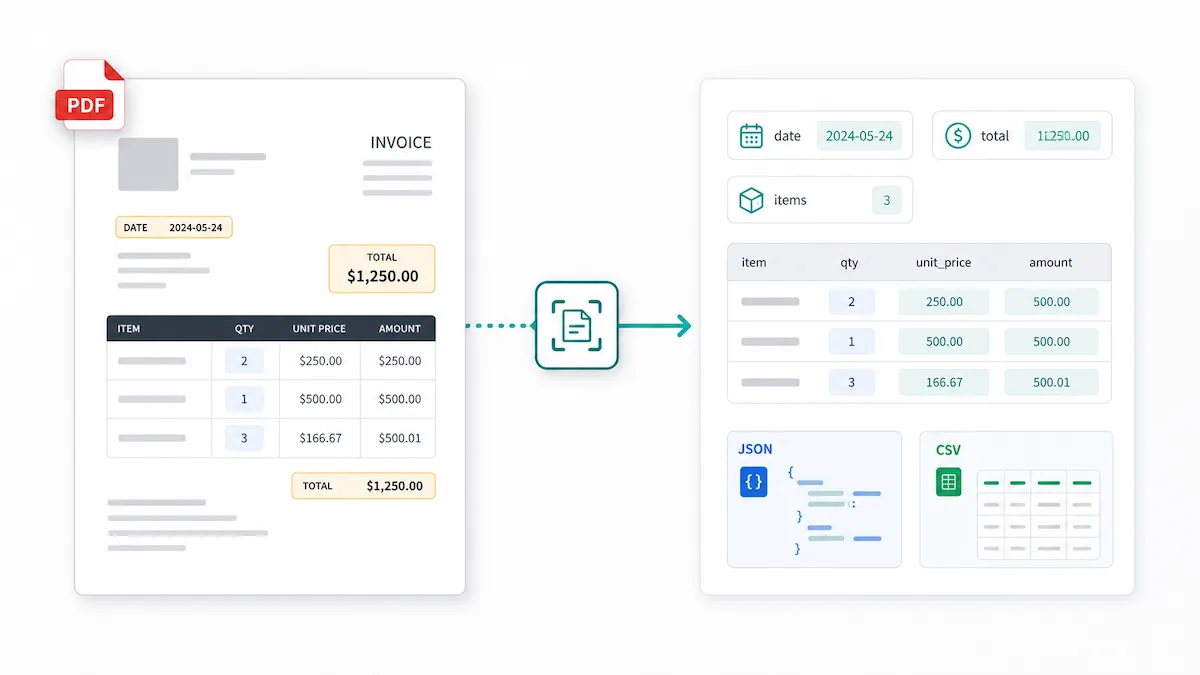
A PDF parser is software that extracts usable information from PDF files and turns it into structured output, such as fields, tables, JSON, CSV, spreadsheets, or database-ready records.
That definition sounds simple, but it solves a real workflow problem. Imagine your team receives PDF invoices every week. A person can see the vendor name, invoice number, date, tax, total, and line items. But when you copy that data into a spreadsheet, the order may break, columns may merge, or the table may become a messy block of text. If the PDF is scanned, you may not be able to select any text at all.
That is where PDF parsing matters. The goal is not just to "read a PDF." The goal is to turn a document into data your team can actually use.
Why PDFs are hard to turn into data
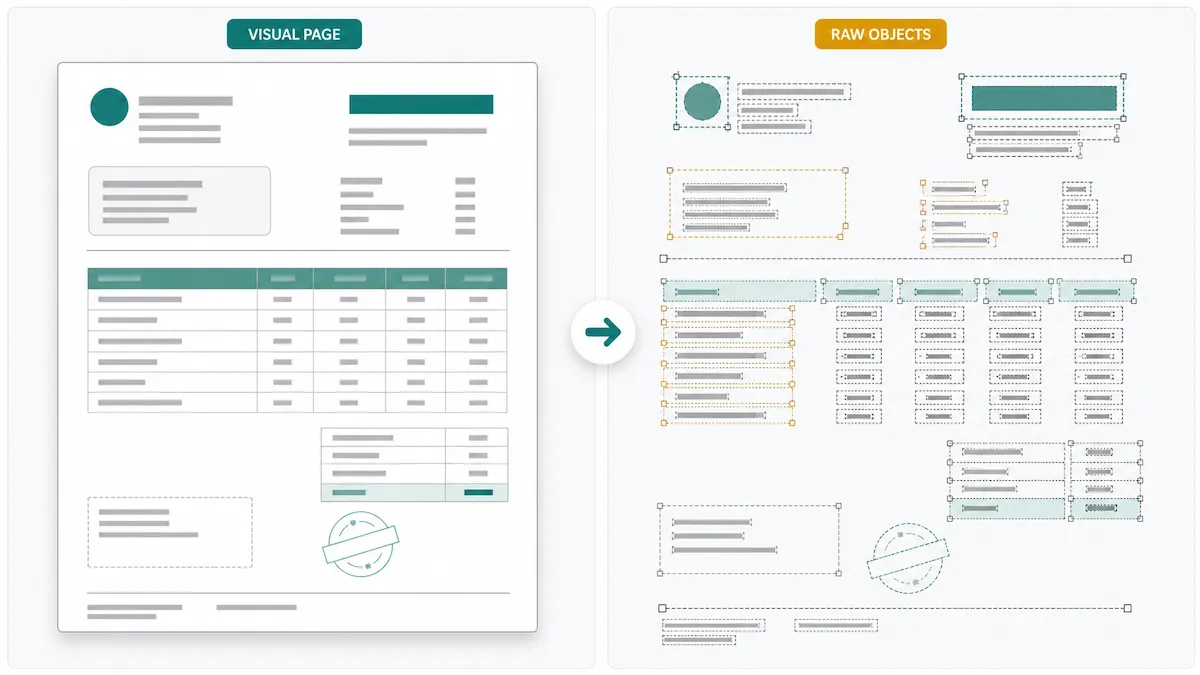
PDFs are excellent for preserving how a document looks. They are much less predictable as a source of structured data.
The PDF format is governed by the ISO 32000 specification, and its core job is reliable document presentation across devices and systems. A PDF is designed to keep a page looking the same, not to behave like a spreadsheet, database, or form schema.
That difference creates several common problems:
The visual reading order may not match the internal text order.
Tables may be drawn with lines and positioned text, not stored as real table cells.
A scanned PDF may be only an image, with no selectable text layer.
The same field may appear in different places across vendors, templates, or document versions.
Headers, footers, sidebars, stamps, signatures, and notes can interrupt the main content.
This is why a basic copy-paste workflow often fails. A PDF converter may help if you only need text. But if you need reliable fields, amounts, IDs, checkboxes, and tables, you need more than raw characters.
What does a PDF parser extract?
A PDF parser can extract different kinds of information depending on the document and tool. Common outputs include:
Plain text from the document
Key-value pairs, such as "Invoice Number: INV-1048"
Dates, names, addresses, IDs, totals, taxes, and amounts
Boolean values, such as whether a checkbox is selected
Tables and repeated rows
Line items from invoices, receipts, reports, and statements
Metadata such as file name, page count, author, or creation date
Custom fields defined by your team
For example, from an invoice, a parser might extract:
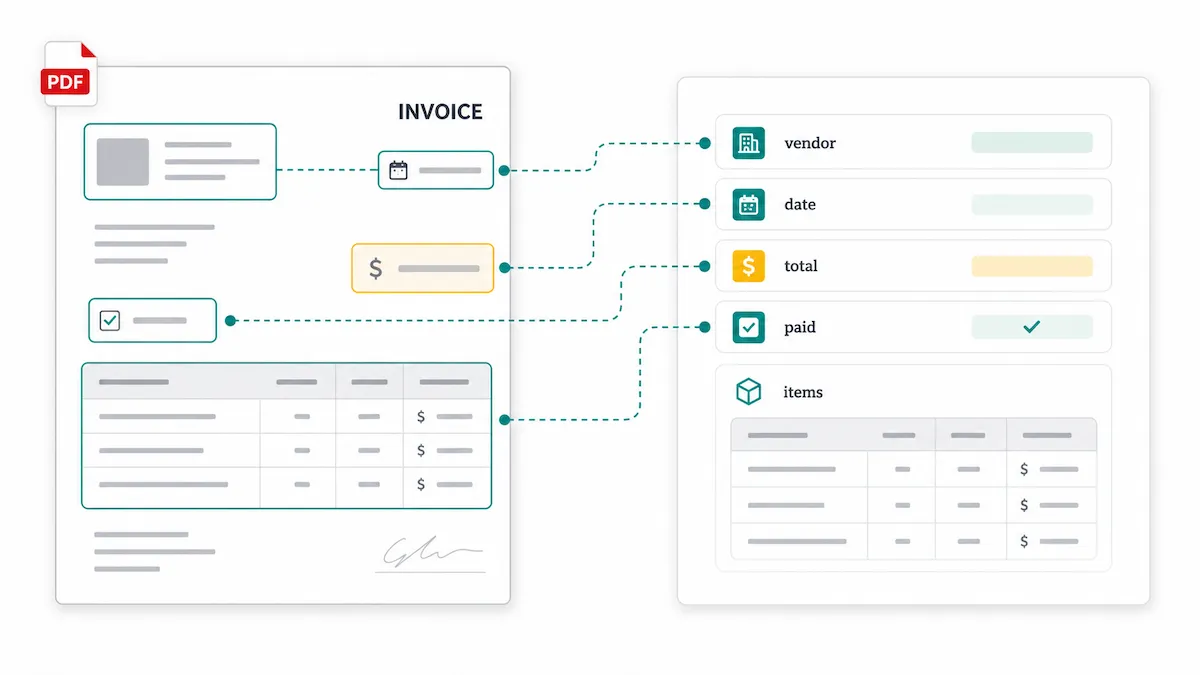
Field | Example output |
|---|---|
vendor_name | Acme Supplies Ltd. |
invoice_number | INV-1048 |
invoice_date | 2026-05-12 |
subtotal | 850.00 |
tax | 68.00 |
total | 918.00 |
line_items | Item, quantity, unit price, amount |
The key idea: a useful PDF parser returns the specific data your workflow expects, not just document text.
How PDF parsing works: the five-layer model
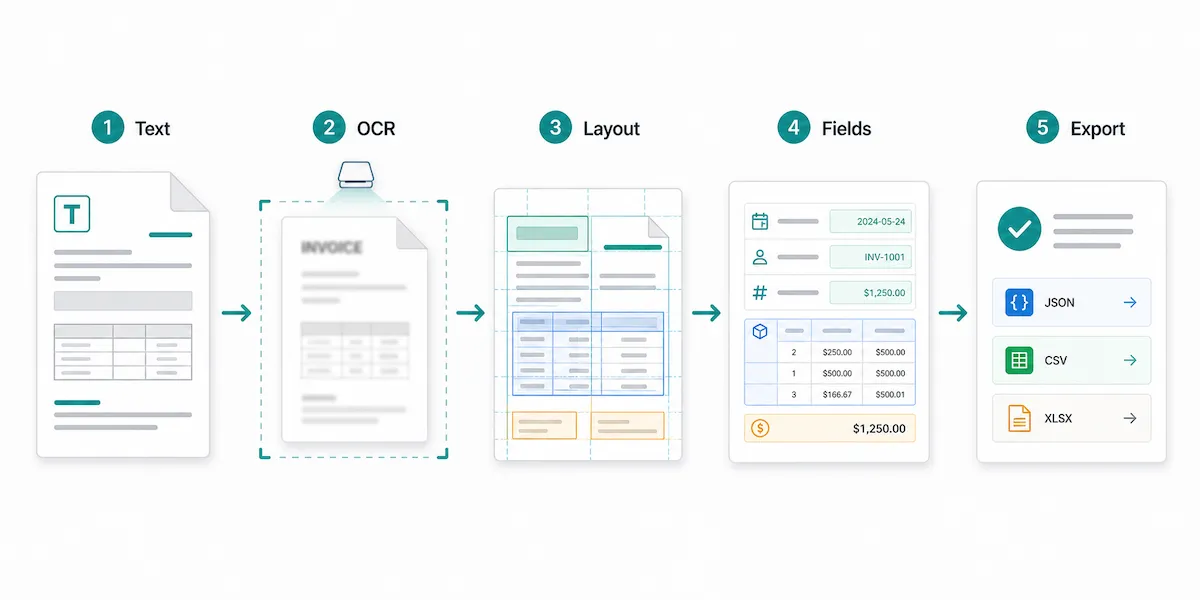
PDF parsing is not a single step. In practice, it is closer to a pipeline. Different tools handle this pipeline in different ways, but most serious parsing workflows include five layers.
1. Embedded text extraction
Some PDFs already contain a text layer. These are often called digitally generated PDFs. For example, an invoice exported from accounting software may include selectable text.
At this layer, the parser reads the text objects inside the PDF. This can work well for simple documents, but it does not always preserve meaning. The parser may get the words on the page without knowing which number is the invoice total, which text belongs to the address block, or which values are in the same table row.
2. OCR
OCR, or optical character recognition, converts visible characters in an image into machine-readable text. It is needed when a PDF is scanned, photographed, faxed, or otherwise image-based.
OCR is important, but OCR alone is not the same as parsing. OCR may tell you that the characters "Total $918.00" appear on the page. A parser still needs to decide that this is the total amount field, not a subtotal, balance due, previous payment, or footnote.
3. Layout analysis
Layout analysis tries to understand how the page is organized. It may look at sections, columns, tables, reading order, proximity, labels, and repeated patterns.
This layer matters because PDFs often store content by coordinates. The page may look obvious to a human, but the underlying file may not say, "This is a table," or "These values are one row."
4. Field and table extraction
This is where parsing becomes business-useful. Instead of returning one long text block, the parser maps content into fields and tables.
For an invoice, that might mean vendor_name, invoice_date, total_amount, and a line_items table. For a contract, it might mean parties, effective_date, renewal_term, and contract_value.
Modern document AI platforms such as Google Document AI and Azure AI Document Intelligence describe this broader category as extracting text, layout, key-value pairs, tables, and custom fields from documents. That is the direction PDF parsing has moved: from reading text toward understanding document structure.
5. Validation and export
The last layer is making the result safe to use. Parsed data may need review, required-field checks, number formatting, date normalization, or comparison against business rules. This is especially important for financial documents, contracts, customer records, and compliance workflows, where a blurry scan or ambiguous label can still cause errors.
PDF parser vs OCR vs PDF converter vs AI data extraction
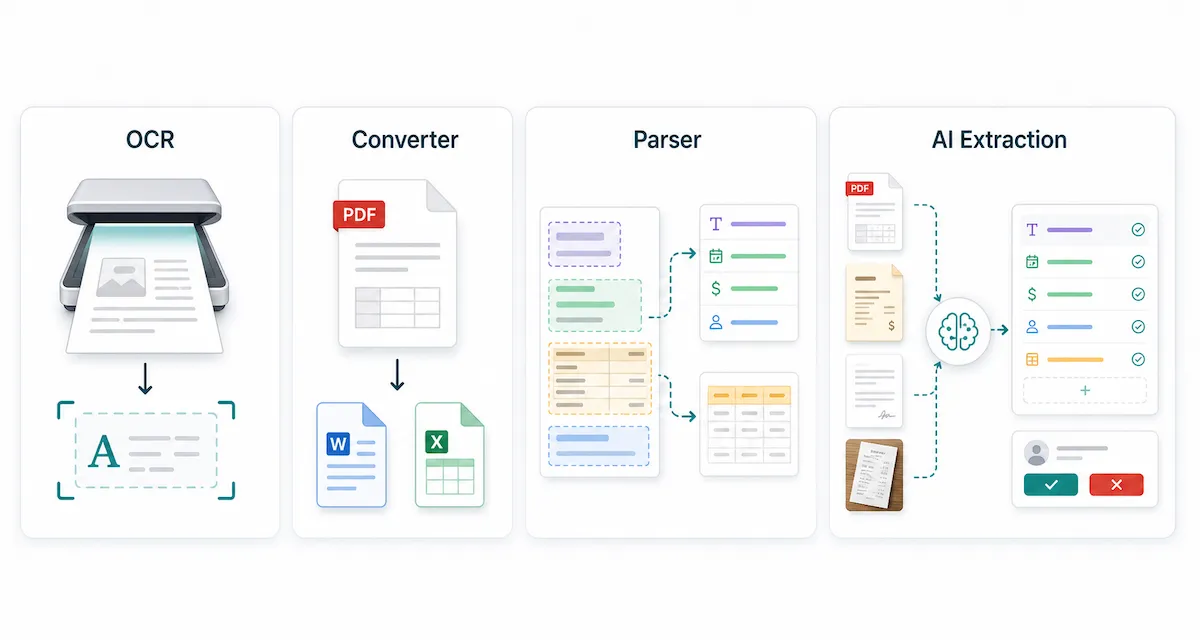
These terms are often mixed together, but they solve different problems.
Tool or method | What it does | Best for | Common limitation | Typical output |
|---|---|---|---|---|
OCR | Recognizes characters in scanned pages or images | Scanned PDFs, photos, image-only documents | Reads text but does not automatically understand business fields | Text |
PDF converter | Converts a PDF into another format | Simple PDF-to-text, PDF-to-Word, PDF-to-Excel tasks | Formatting and tables may break; field meaning may be lost | Text, Word, Excel, images |
PDF parser | Extracts specific data from PDF content | Reusable business fields, tables, forms, invoices, reports | Needs good field definitions and may need review | JSON, CSV, spreadsheet rows, field objects |
AI data extraction tool | Uses AI, schema, and instructions to extract structured data from varied documents | Layout variation, custom fields, no-code or low-code workflows | Accuracy depends on document quality, schema clarity, and review process | Structured fields, tables, JSON, workflow-ready data |
The shortest version: OCR reads characters. A PDF converter changes file format. A PDF parser extracts meaning into fields and tables. An AI extraction tool can make parsing more flexible when layouts vary or when teams need custom schemas.
Common PDF parsing use cases
PDF parsers are most useful when documents repeat and the extracted data needs to go somewhere else.
Invoices and receipts
Teams parse invoices and receipts to extract vendor names, invoice numbers, dates, totals, tax, payment terms, and line items for accounting, expense, procurement, or reconciliation workflows.
Forms and applications
Forms may contain names, addresses, submitted answers, selected checkboxes, signatures, and attachments. A parser can turn completed forms into consistent records instead of retyped data.
Contracts and agreements
Contracts are often long, but teams usually need specific fields: parties, effective dates, renewal dates, termination terms, contract value, governing law, or notice periods.
Reports and statements
Financial statements, bank statements, lab reports, audit reports, and operational reports often contain tables, metrics, account details, totals, measurements, or period-specific values.
Custom internal documents
Many companies have document types that generic parsers do not understand out of the box, such as inspection sheets, shipping documents, claim forms, research papers, or internal reports. In these cases, custom fields matter more than a generic "extract all text" button.
Types of PDF parsers
There is no single best parser for every situation. The right option depends on your document quality, layout consistency, technical resources, and review needs.
Rule-based or template-based parsers
Template-based parsers use rules, zones, coordinates, keywords, or fixed layouts. They can work well when every document follows the same format. The tradeoff is maintenance: if the layout changes, the rule may break.
Developer libraries and scripts
Developers can build PDF parsing workflows with libraries and scripts. This can fit stable templates or teams that want full control, but real-world PDFs often require separate handling for scans, tables, rotated pages, multi-column layouts, and exceptions.
Cloud document AI APIs
Cloud APIs can provide OCR, layout analysis, form extraction, table extraction, and specialized document processors. They are useful for developer integration, but they still require engineering work, monitoring, and often a product layer for non-technical users.
AI-powered extraction tools
AI-powered extraction tools are built for teams that need flexible structured extraction without maintaining a custom parser from scratch. They are especially useful when layouts vary, fields are custom, or business users need to define and review outputs. The tradeoff is that AI extraction still needs clear schema design and human review for high-value workflows.
When you do not need a PDF parser
A PDF parser is not always necessary. You may not need one if:
You only need to read the PDF.
You only need to copy a small amount of text once.
The source data already exists as CSV, Excel, JSON, or an API.
The document is so low quality that even a human struggles to read it.
Your requirements demand a fully local, custom, audited system that a cloud tool cannot provide.
This boundary matters. If you only need plain text from one file, a simpler converter may be enough. If you need repeatable structured data from recurring documents, a parser becomes much more valuable.
What to look for in a PDF parser
When evaluating a PDF parser, start with your end data. Ask: what fields, tables, formats, and checks do we need after extraction?
Here are practical criteria to consider:
OCR support for scanned or image-based PDFs
Field extraction for names, dates, numbers, IDs, and custom values
Table extraction for line items or repeated rows
A way to define the schema you expect
Support for recurring document types
Review before downstream use
Outputs that fit your workflow, such as JSON, CSV, spreadsheets, databases, or automation tools
Clear handling of privacy, retention, and sensitive documents
Reasonable error handling when fields are missing or uncertain
Accuracy is not a magic number. It depends on document quality, layout consistency, field definitions, OCR quality, and review.
How Pixcribe helps with structured PDF extraction
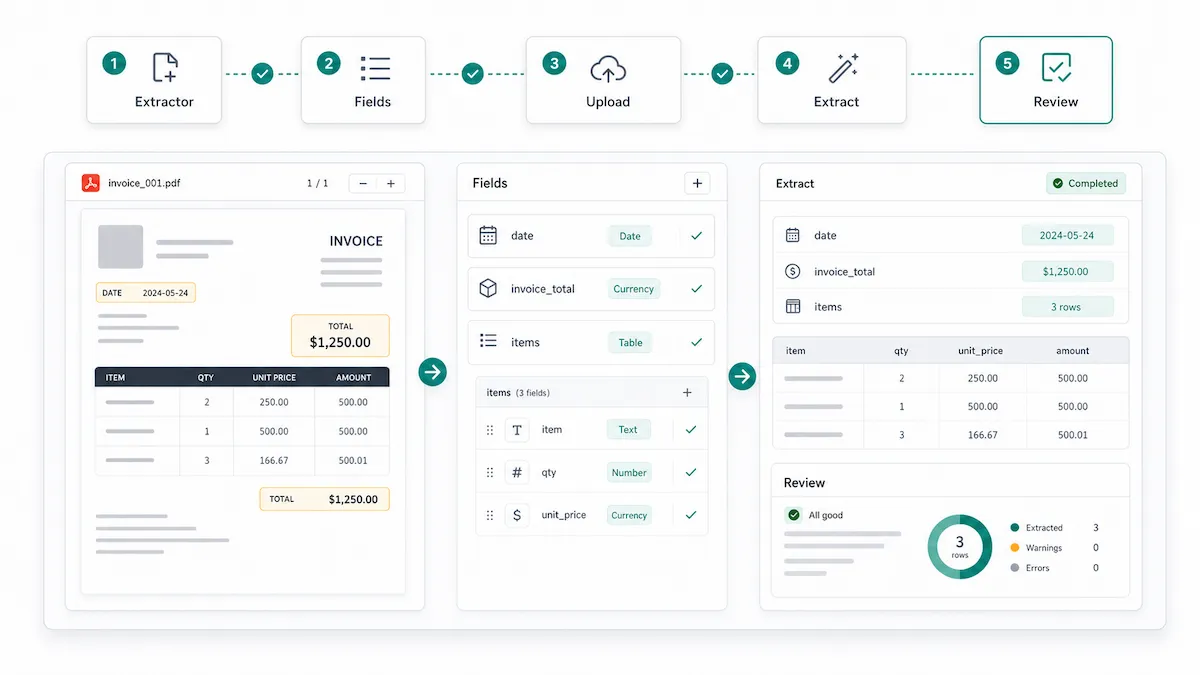
Pixcribe turns PDF parsing into a reusable structured extraction workflow.
Instead of treating every file as a one-off conversion task, you can create an Extractor for a recurring document type. An Extractor defines the output you want: fields such as names, dates, totals, IDs, booleans, and custom values, plus tables for repeated rows.
A typical Pixcribe workflow looks like this:
Create an Extractor for a document type, such as invoices, contracts, reports, or research papers.
Define reusable fields using types such as String, Number, Boolean, and Table.
Upload supported documents, including PDF, DOCX, JPG, PNG, or WEBP files.
Let Pixcribe extract the document into structured output.
Review the result before using it in your next workflow.
This makes Pixcribe a practical fit when your team wants document data shaped into the fields and tables your business process expects.
Pixcribe is not a promise that every messy PDF will be perfect. Like any parser, results depend on file quality, layout complexity, and how clearly you define the output. The benefit is turning recurring document extraction into a repeatable process instead of rebuilding the same copy-paste routine every time.
FAQ about PDF parsers
Is a PDF parser the same as OCR?
No. OCR recognizes characters in scanned pages or images. A PDF parser extracts useful information from a PDF and maps it into fields, tables, or structured output. OCR may be one layer inside a parser, but it is not the whole workflow.
Can a PDF parser extract tables?
Yes, many PDF parsers can extract tables, but table extraction is one of the harder parts of PDF parsing. A table may be stored as positioned text and lines rather than real rows and columns. Research on document table extraction, such as the PDFTable paper, treats table detection and structure recognition as distinct technical problems.
Can I build a PDF parser with Python?
Yes. Developers can build parsers with Python libraries, OCR tools, and custom logic. This can work well for stable layouts. The harder part is handling layout changes, scanned pages, tables, exceptions, and review. If your team does not want to maintain that pipeline, a structured extraction tool may be easier.
What output formats can a PDF parser create?
Common outputs include plain text, JSON, CSV, Excel-compatible tables, database records, and structured field objects. The best format depends on where the data needs to go next.
Are AI PDF parsers always accurate?
No. AI can make parsing more flexible, especially when layouts vary, but accuracy still depends on document quality, OCR quality, schema clarity, and review. Sensitive workflows should include human checks before the data is used.
What is the difference between PDF parsing and document extraction?
PDF parsing usually refers to extracting data from PDF files. Document extraction is broader. It can include PDFs, images, Word documents, forms, receipts, emails, scans, and other business documents. In practice, many modern tools support both.
Conclusion: start with the data you need
A PDF parser is useful when the real problem is not the PDF itself, but the data trapped inside it.
If you only need to read or copy a small amount of text, a simple tool may be enough. If you need recurring fields, tables, review, and structured output, look for a parser that supports OCR when needed, understands layout, lets you define a schema, and produces data your workflow can use.
For teams that need reusable structured extraction from PDFs and related documents, Pixcribe lets you create an Extractor, define fields and tables, review the output, and turn documents into workflow-ready data.